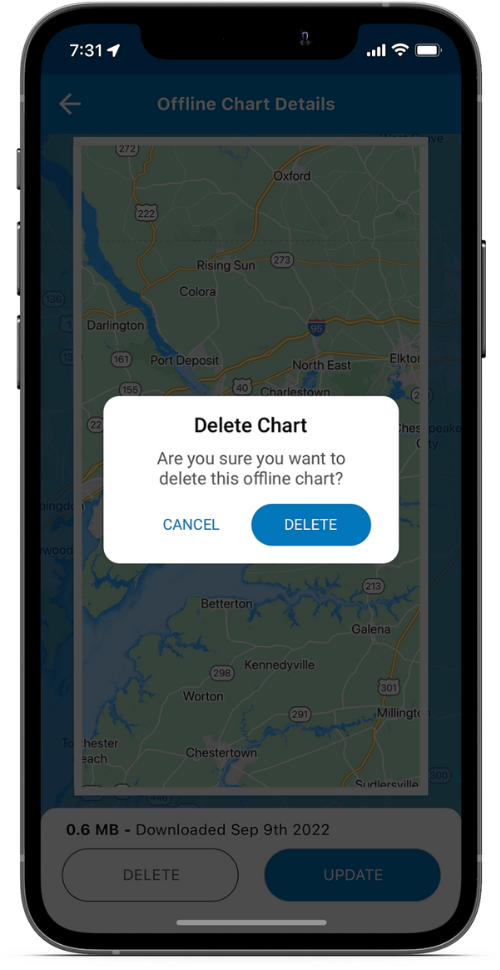
Download charts for offline use for when you lose connectivity while on the water. With downloaded charts, Argo seamlessly goes into “offline mode” without losing access to critical chart data like depth numbers, depth shading and navigational aids, eliminating any connectivity concerns on the water.
Upgrade to Premium
To download charts for offline use you must first upgrade to the Premium version. Tap the  icon, found in the top right corner of Argo’s Home Screen, and choose Unlock Premium Features.
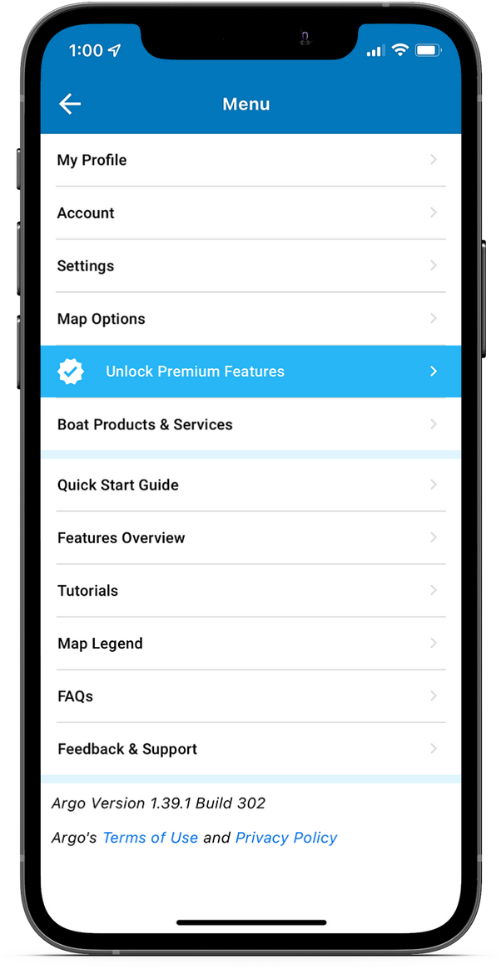
PREMIUM FEATURE
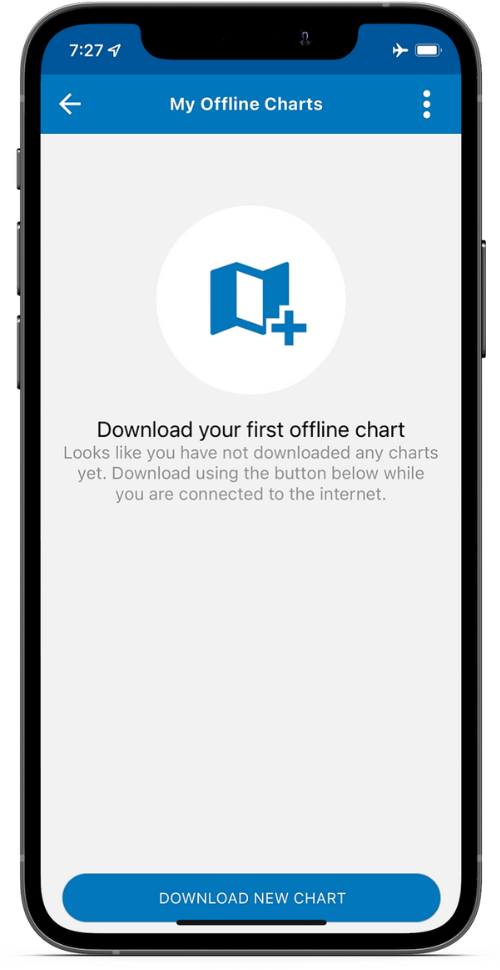
Download First Offline Chart
Tap the icon, found in the top right corner, and choose Download Offline Charts screen. Then tap Download New Chart, select Standard (with color depth shading) or NOAA ENC, select download area and press the Download button. You may use the app while it is downloading, but do not put the app in background.
Note: You can also choose Set Auto Download. This will download an area around your home port as well as a radius around your current location. It will also continue to update as you move so you will always have offline charts.
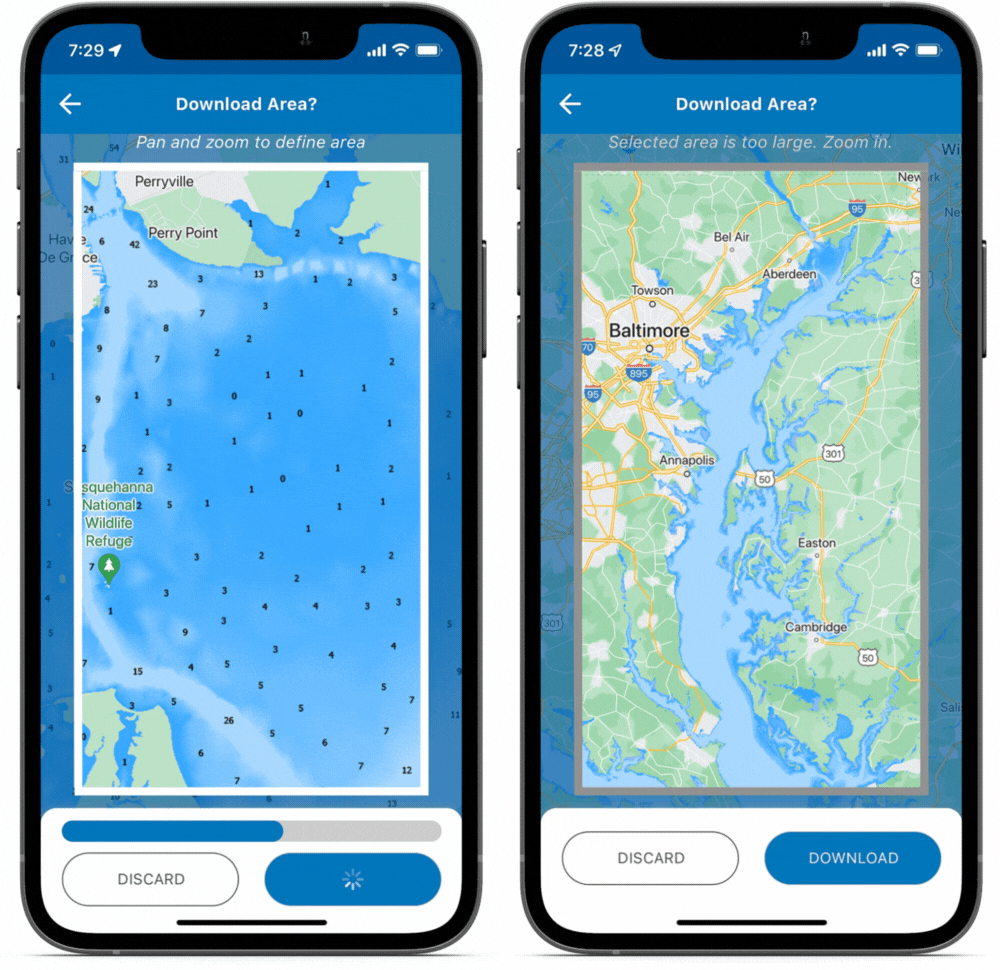
Select Download Area
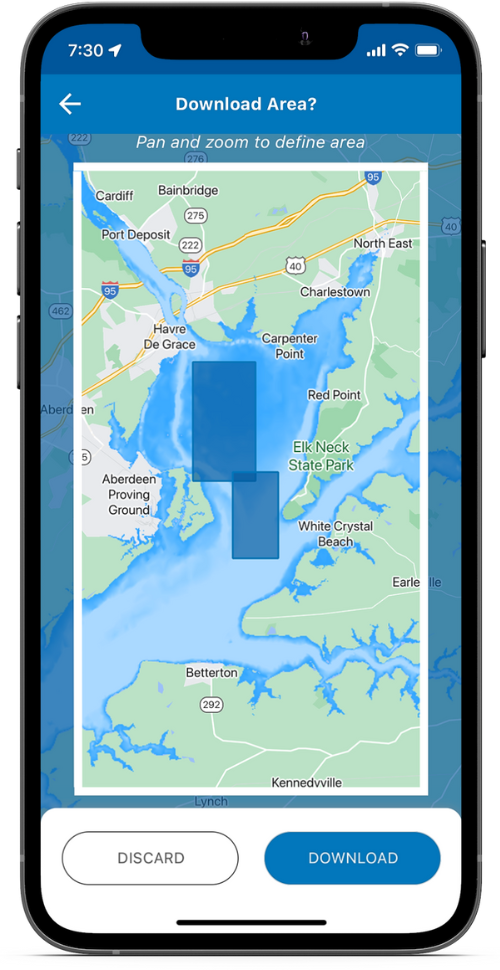
Tap Download New Chart button. Then pan and zoom the map to define the area desired. You can also adjust the area borders as desired. The approximate download size will be displayed. If the selected area is too large you will be asked to zoom in.
Once completed you will be able to see the area you have downloaded and the size of the file. You will be able to see the actual chart by tapping Preview Offline Charts.
Note: NOAA ENC and large areas will take longer to download.
Download Multiple Offline Charts
From the Offline Charts screen, tap the Download New Chart button. When selecting the download area for the new chart, the map will show all previous areas you have downloaded.
Edit/Update Offline Charts
From the Offline Chart screen, select the desired chart and tap SEE DETAILS. Then adjust the download area and tap the Download button. This action will redownload the same area or resized area.
Edit the chart name by tapping the pencil.

Delete Offline Charts
From the Offline Chart screen, slide the desired offline chart to the right and tap the red trash can. Or select the desired chart, tap SEE DETAILS and then the Delete button.
You can also tap the  in the upper right corner and select Delete All.