Looking for fuel, a place to eat or somewhere to dock? Argo’s search feature makes it easy to find places on the water. Use the feature at home to plan future trips or while on the water to find your next destination. You can search for place by name or categories of places (e.g. marinas, restaurants, fuel in the area).
Position Map & Press Search Button
Position the map on an area you want to search, then tap the Search button  . The search will find places anywhere in North America, but will display them based on the distance from your current location.

Search Using Keywords and Categories
You can search for a specific place by typing its name and/or tapping on a category (e.g. boat ramp, dock bar, fuel). Scroll left or right to view Favorite Categories or tap Search Categories to view all categories. You can search single or multiple categories and you can use a few unique categories to refine your search:
- Amenities for marinas and yacht clubs
- Argo Partners
- Rating (5-Star to 1-Star)
Argo will search based on where the map is positioned and will list the results by distance from you. If it’s not on the list, keep scrolling or search a new area of the map.
You can also tap on the  icon in the upper right corner to bring up the Map View of the top 20 results on the map. If less than 20 results appear you can tap Zoom For More Results. You can also move the map and tap Search This Area.

Other Search Options
You have a few shortcuts to help you get to the place you are looking for including Search History and Favorite Places. The last five searched places will always be displayed under Recent Places.
Search History
This will display the last 20 places that you have found using search. If you want to delete one, simply slide it to the right and tap the red trash can.
Favorite Places
This will display all places that you have favorited in the app. You can search for a favorite using the search bar at top. You can also sort them using the sort chips. If you want to delete one, simply slide it to the right and tap the red trash can. This will unfavorite it. If you want to add a favorite place, you can do that from here by tapping the “+” button in the lower right.
Enter Coordinates
This can be used to view the location of a GPS coordinate and drop a pin on the map. Here are the steps:
- Enter or post coordinates in DD, DDM or DMS format. The check mark in the upper right will turn green once you enter a valid GPS coordinate.
- Tap on the check mark to display the coordinate on the map.
- Tap Confirm Location if the coordinate looks correct. This will place a GPS pin on the map.
- Tap the Heart icon to favorite. This action will save the location as a GPS pin on the map. You can manage all your pins using My Pins.
Edit Search Category Favorites
The categories listed on the scroll bar can be customized to display those you use most often.
Tap the pencil at the end of the row to go to the Edit Favorites screen. Here the categories highlighted in blue are the favorites displayed on the category scroll bar. Simply select or remove categories and tap the back arrow when you are done.

View Results on the Map
To view the top 20 results on the map, press the Map View icon in the upper right hand corner. Once you’re in map view, you can adjust the position of the list by pulling the grey bar (above the list) up or down.
You can also press the List View  icon to go back to the full list view.

Tap on Results Pins
Tap on a orange Result Pin to view the name of the place and it’s address. Tap on the result box and the Place Details will be brought up.

Expand Results on the Map
If less than 20 results appear you can tap Zoom For More Results. You can also move the map and tap Search This Area.

Preview Places
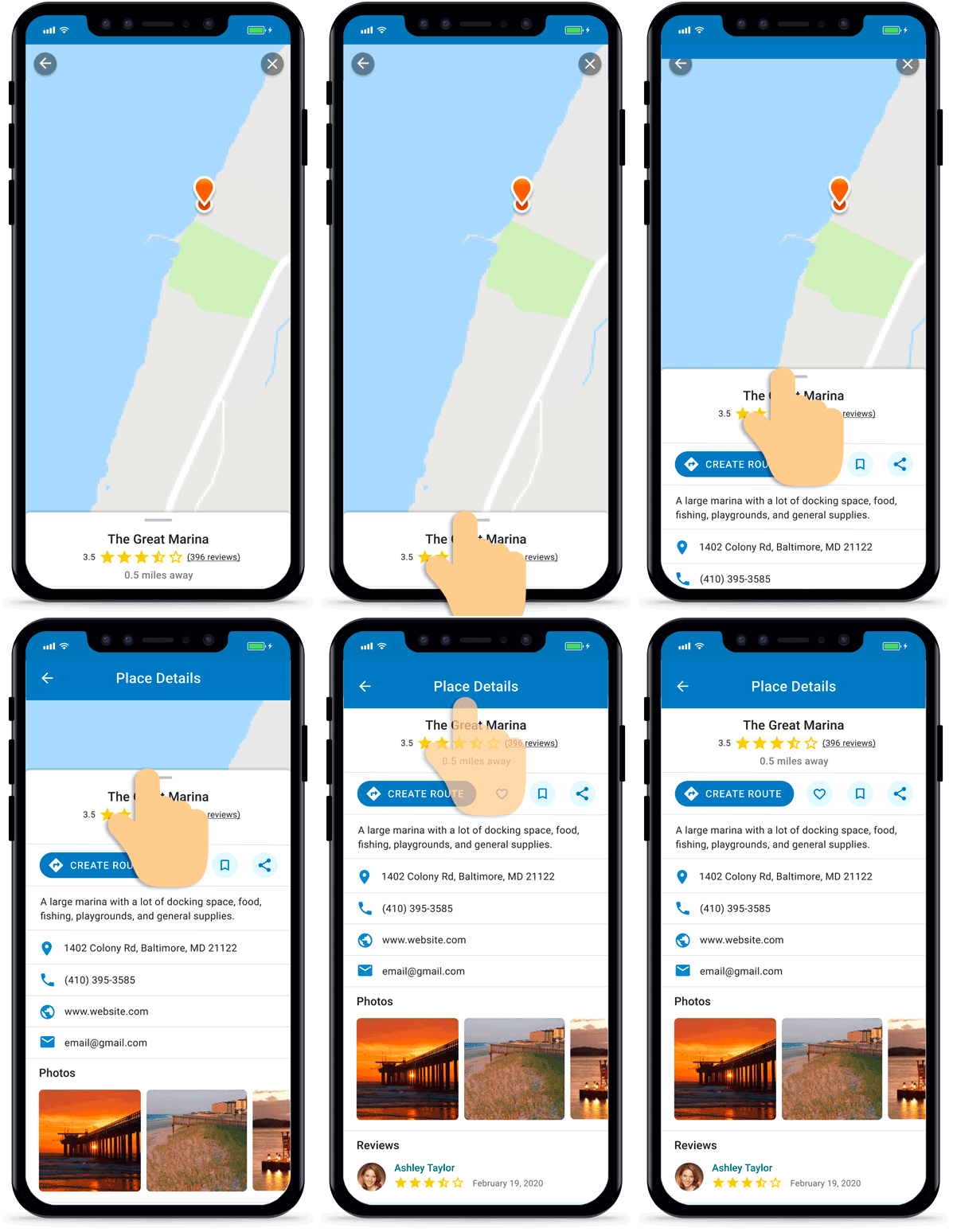
The preview screen displays the place on the map and lower drawer with the name, rating and the direct distance away. It also gives options to create a route to the place, add it to your favorites, or share it.
To learn more about the place, pull up on the grey bar above the place’s name to open the full screen. In the full display, you may find a description about the place, contact details, address, website and photos.