
Post photos and videos for your friends and groups, and like and comment on what other boaters share.
Trips you save post to Community automatically. To share a trip, a planned route or a place, see Share a trip, route or place.
2 minute read
Post photos and videos
Step 1: Open Community
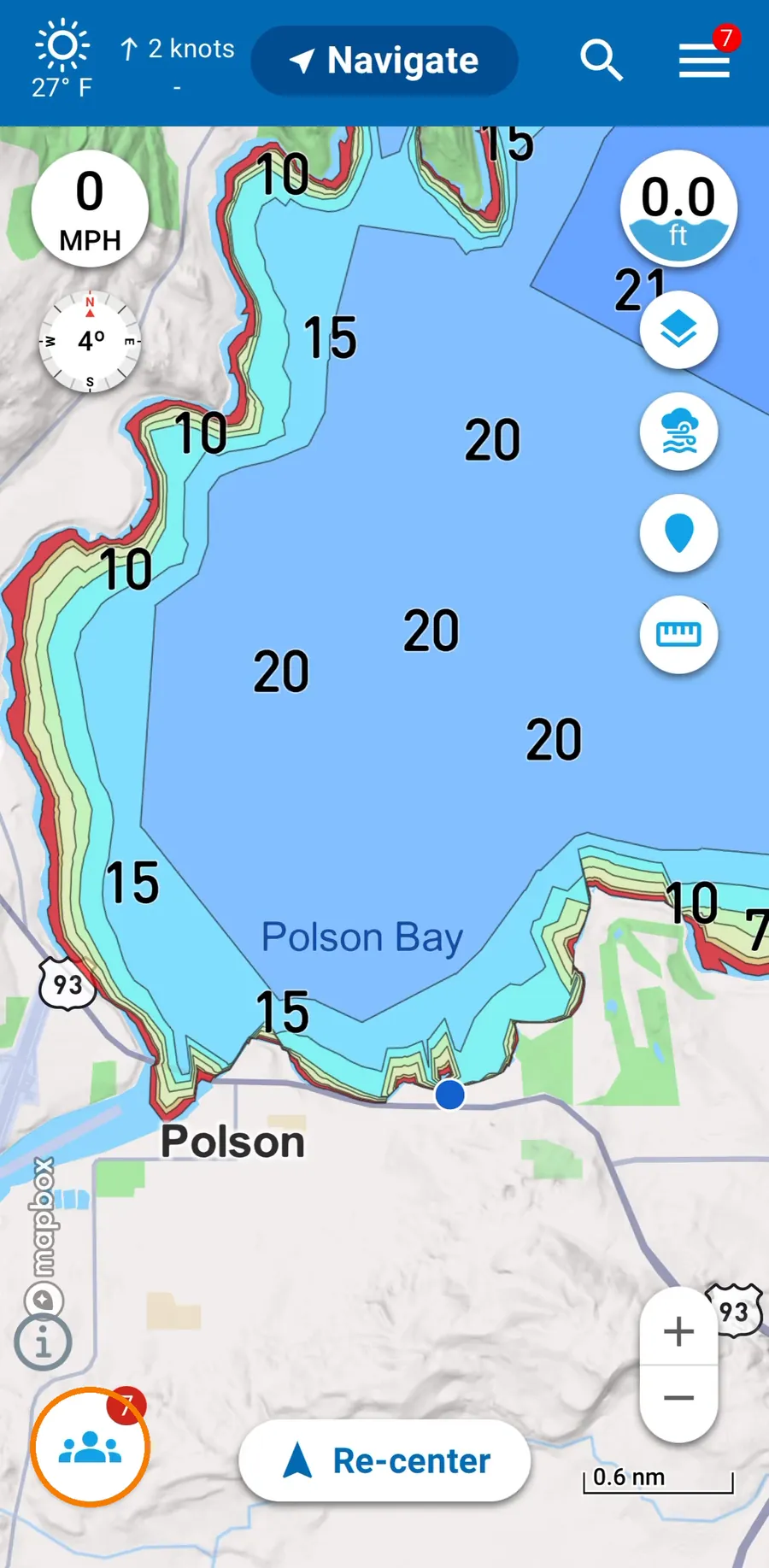
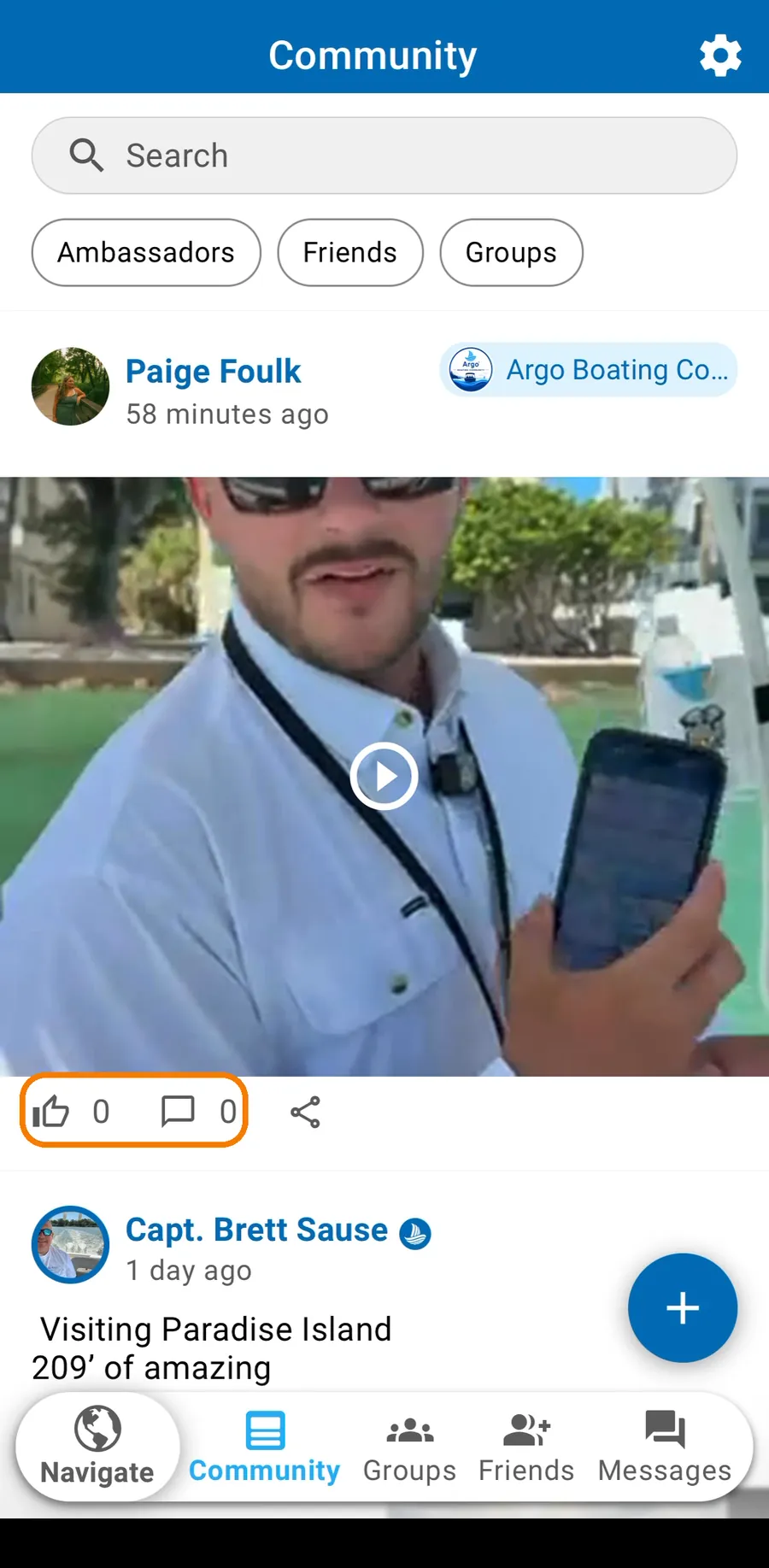
From the map, tap the Community button in the bottom left corner. Scroll to see what your friends, your groups and Argo ambassadors have posted.
Step 2: Start a post
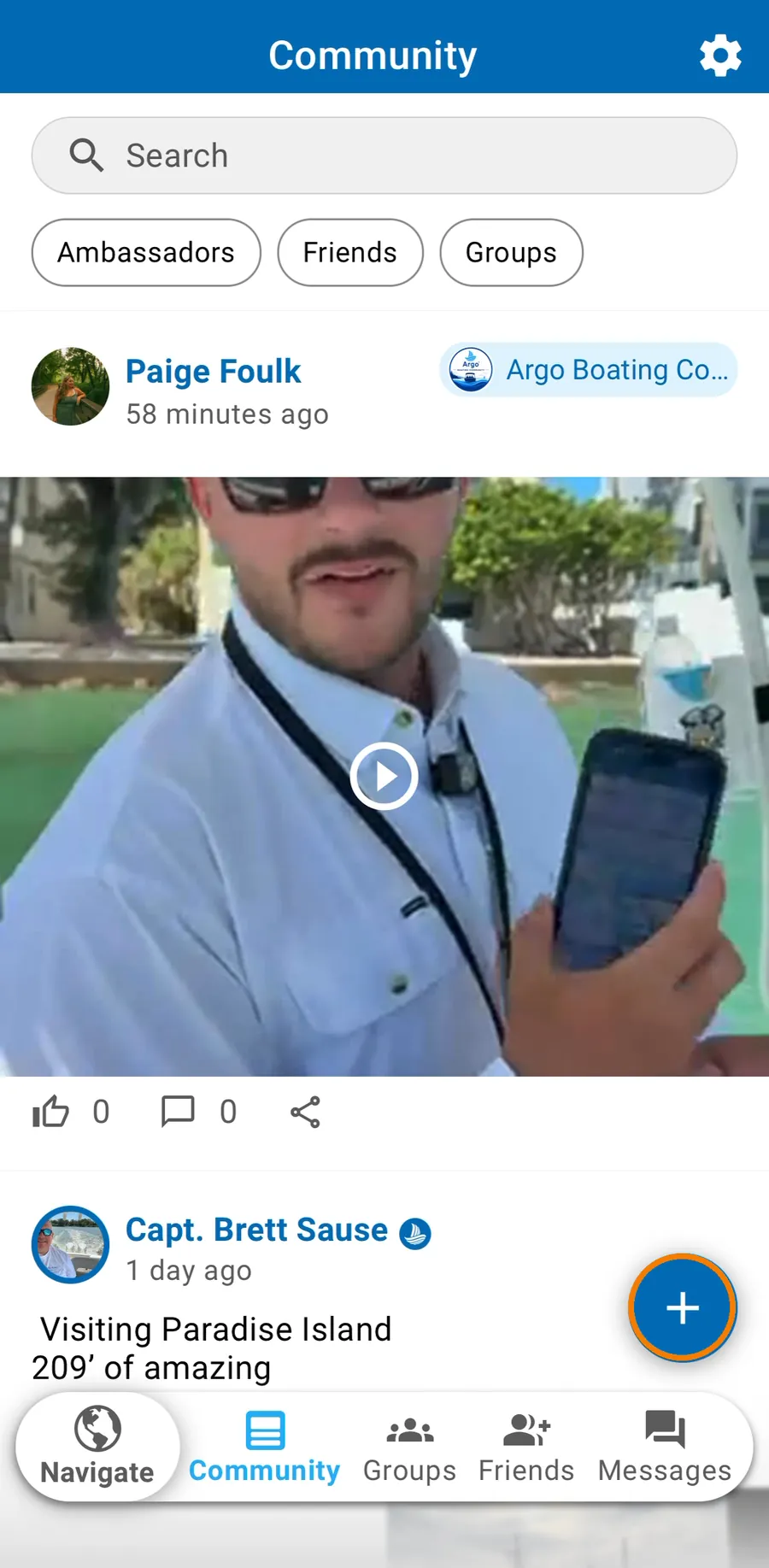
Tap the + button in the bottom right corner. Type what you want to say under What’s happening? Posts can be up to 1,000 characters.
Step 3: Choose who sees it
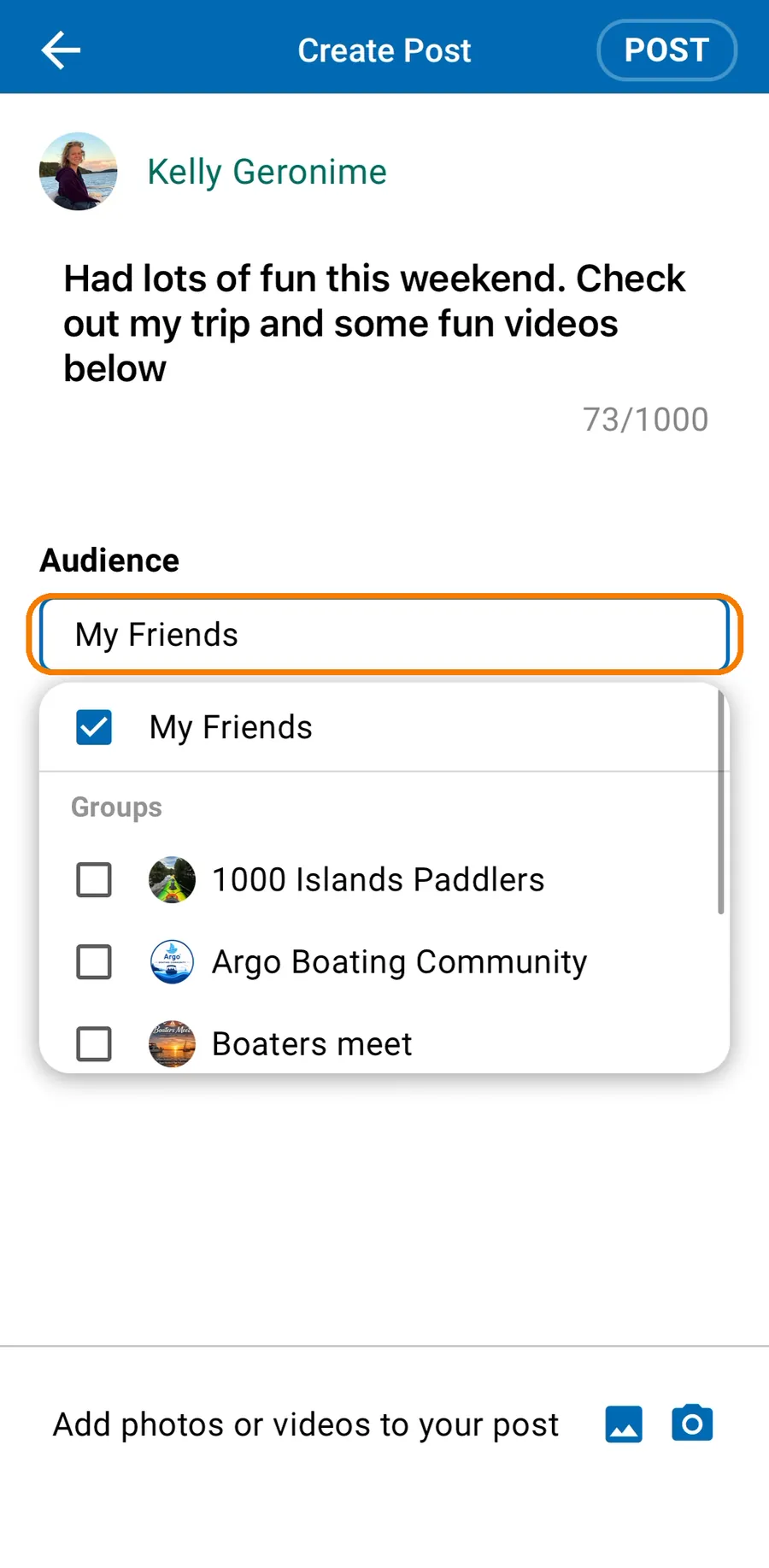
Tap Audience. My Friends is checked to start. Check any of your groups to post there too.
Step 4: Add photos or videos
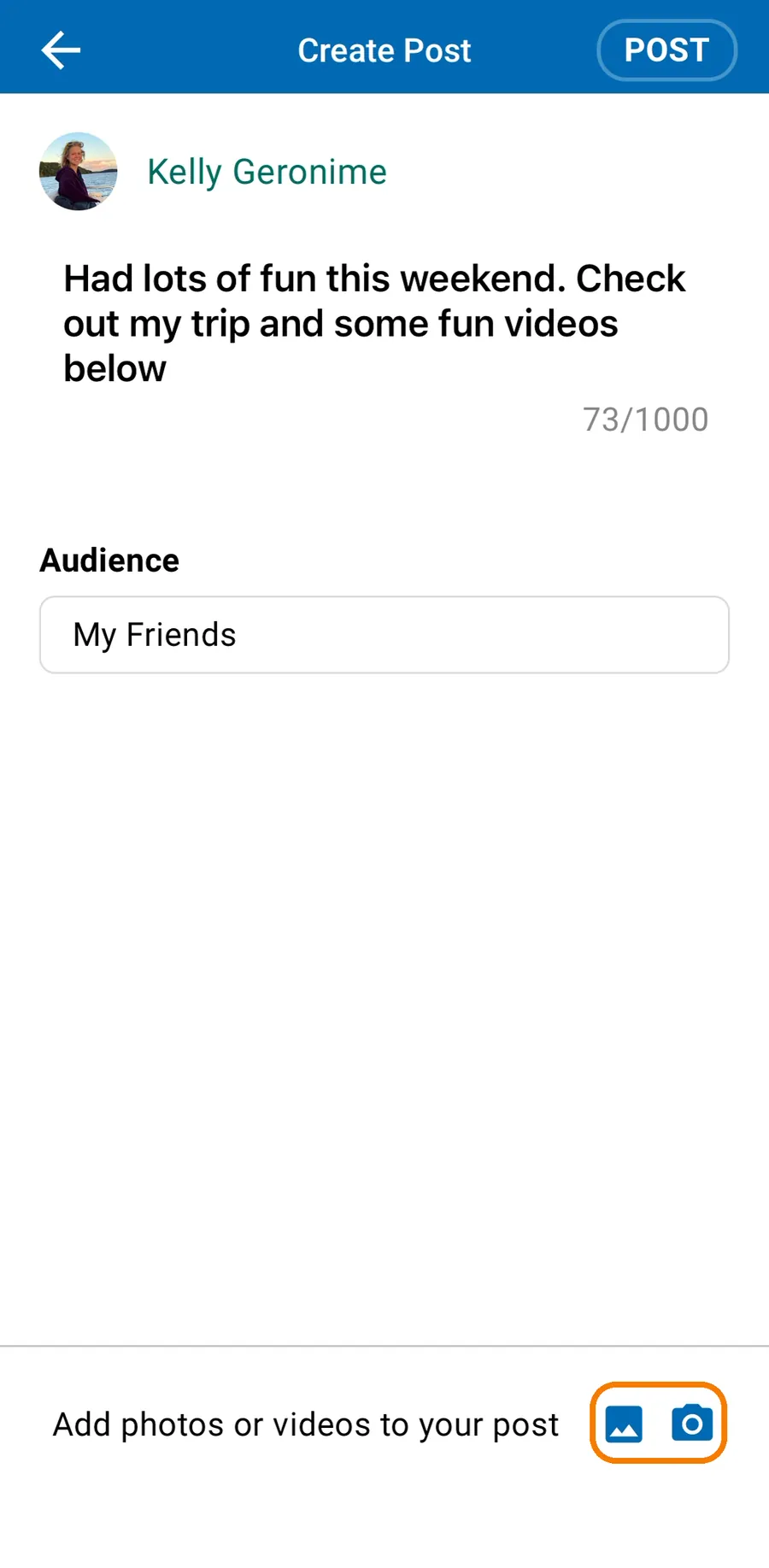
Next to Add photos or videos to your post, tap the photo icon, then Choose Photo or Choose Video to pick from your phone. Or tap the camera icon to take a photo or video now.
Tap POST in the top right corner when you’re done.
Like and comment
Tap the thumbs up under a post to like it. To comment, tap the comment icon, type in Add a comment and tap the arrow to send.
What’s next
Share where you’ve been and where you’re headed: Share a trip, route or place.