Save all your routes, tracks trips and trip logs within My Trips.
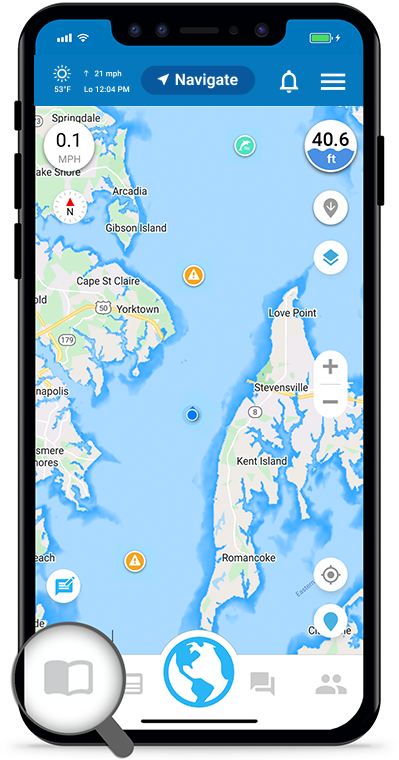
Open My Trips
Press the Navigate button found in the top menu. Then select the My Trips  icon from the dropdown. If you are on a tablet you will not see a Navigate button. Simply tap My Trips from the top menu bar. You can also find My Trips within the Menu.
Save Routes, Tracks and Trips
Planned routes are saved to My Trips by pressing Save Route after creating a route. Recorded Tracks are saved to My Trips while recording by expanding the lower drawer and pressing Save Track. Trips are saved to My Trips while on a trip by expanding the lower drawer and pressing Save Trip.
View Your Saved Trips
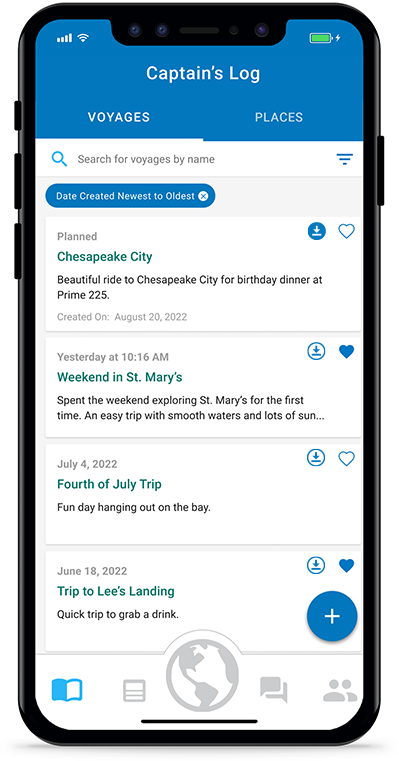
Upon opening My Trips you will be provided a List View of all your trips. You will see chips for Routes, Tracks, Trips and Logs to see only those items. Use the search bar at the top to search for a specific route, track, trip or trip log.
Filter and Sort Trips
Tap on the filter  icon at the top right to get multiple filter and sort options. Organize and view the trips however you like. They will remain filtered and sorted as you last left them.
Map View
You can also tap on the  icon in the upper right corner to bring up the Map View and see the listed trips on the map. If you prefer to see the trips based on location of the main map, tap on the filter icon at the top right and toggle on Filter by Map Area.
List View Trip Actions
From the List View there are 3 toggle actions available for each item: Favorite, On Map and Download. The icon will become blue, as shown at right, when the action is implemented.
Favorite
Tap the Heart to favorite a route, track or trip. This can also be done within the Trip Details screen.
On Map (Premium Only)
Tap the On Map icon to add the item (route or track) to the main map. This can also be done within the Trip Details screen. Routes will be display in black. Tracks will be displayed in white or your selected track color.
Download for Offline (Premium Only)
Tap the Download icon to download a route, track or voyage to your local device for offline use. This can also be done within the Trip Details screen, but you must that the  icon in the upper right hand corner.
View Trip Details
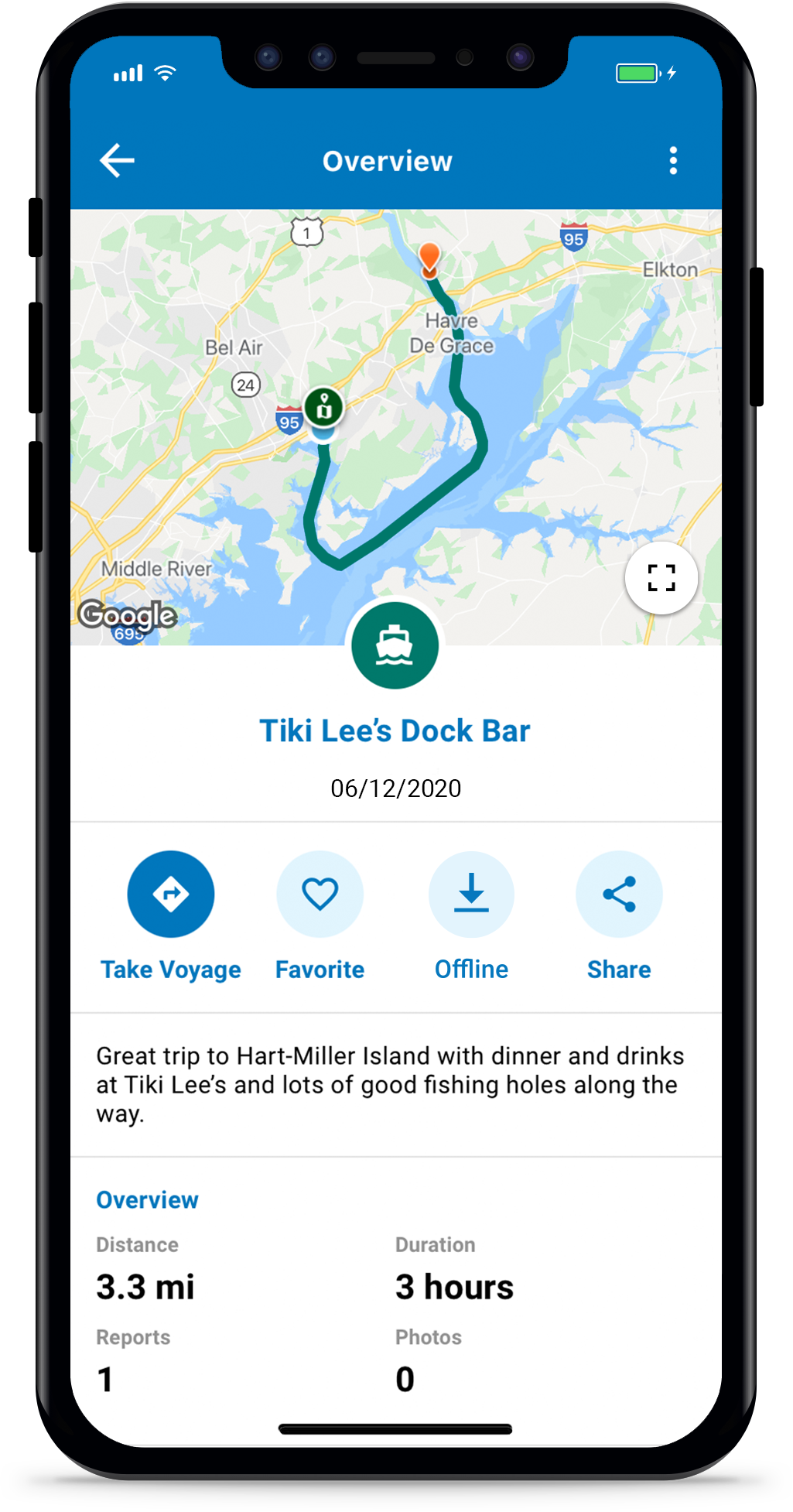
Tap on a specific trip to view more information about it. Check out the route, track, distance, duration and any report pins dropped or photos taken along the way.
Expand Map
Click on the  icon in the lower right of the preview map to maximize the map and get a better view of the trip. Click on the
  icon to minimize the map.
Return to Main Map
Click on the icon in the lower right of the preview map to return to the main map, keeping the preview map location.
Report Trip Issues
Click on the icon in the lower left of the preview map if you see something wrong with your route, track or trip and would like to report these issues.
Start Trip
Select the route, track or trip you want to take. Tap the Start Trip icon. For tracks or trips, it will convert the track to a route that can then be used for a return trip or a future trip.
Edit, Copy or Delete Routes
To edit a route, tap on the [EDIT] icon in the Preview map or the green pencil next to Route Details section. This will give you the same features as when you created the route allowing you to adjust any of the points.
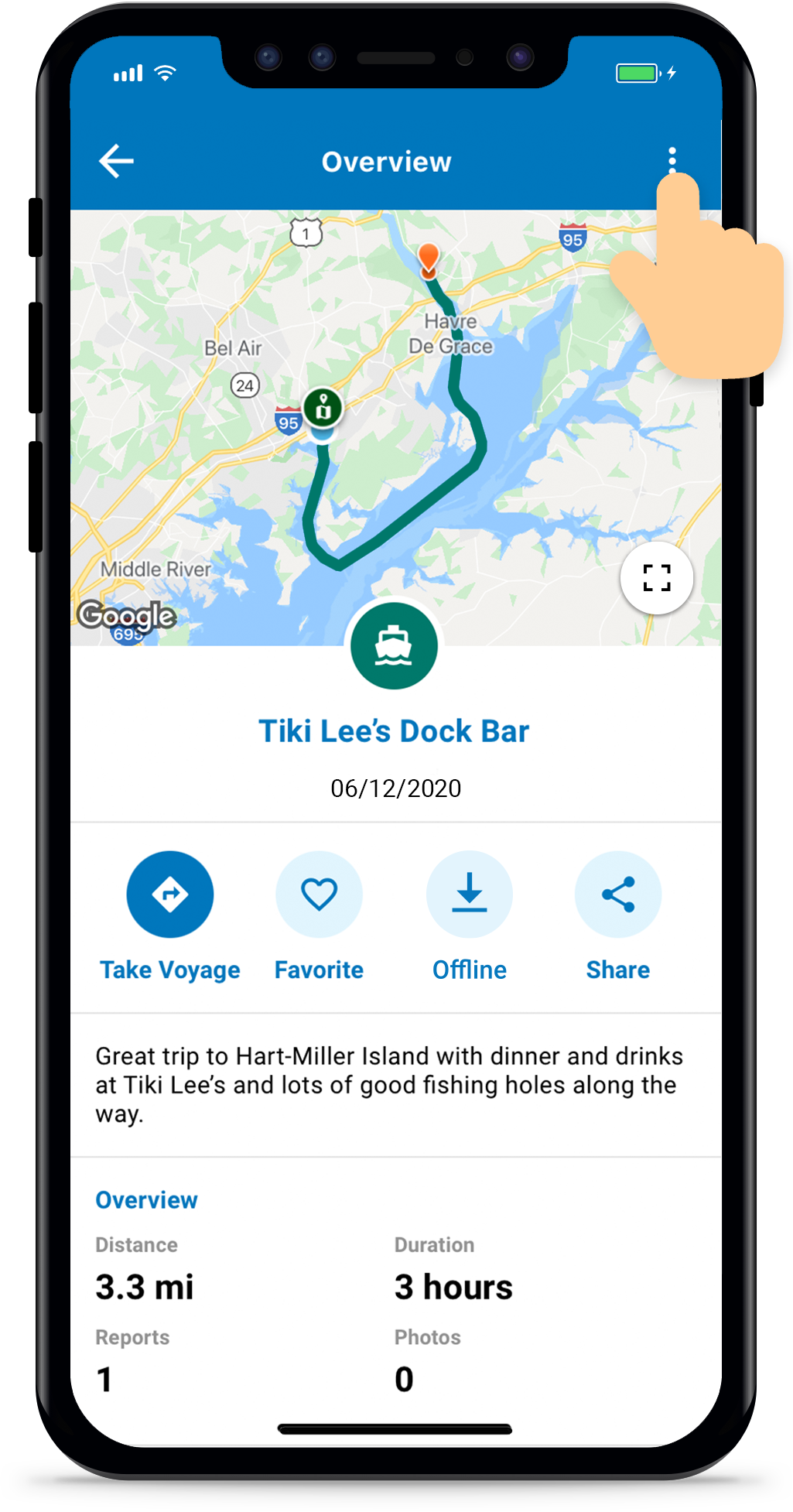
To copy a route tap the in the upper right-hand corner and press Make a Copy
To delete a route, tap the and press Delete. From the list view you can also slide the voyage entry to the right and tap on the trash can.
Add Photos
Scroll to the bottom of the route details and press Add Photos.
Change, Edit or Sync Boat Details
Argo allows you to change boat and boat details for all saved routes.
Change Boat
Tap the Change Boat button at the top of the Boat Details section and select from the dropdown list of your vessels. Once selected, the saved route will be updated in the preview map based on the new vessel. Also all route information such as distance, duration and fuel used. Tap Save Changes if you approve.
Edit Boat
Tap the green pencil next to the selected boat card and edit the boat details. The route and all route information will be updated after each edit. Tap Save Changes if you approve. Note: The edits will only be made for this route, not change the select boat profile.
Sync Boat Details
The Sync Boat Details button appears below the Boat Details section when your boat profile information is different than the originally saved boat details. Tap this button to update the boat details saved with the route. The route and all route information will be updated. Tap Save Changes if you approve.
Add Trip Logs
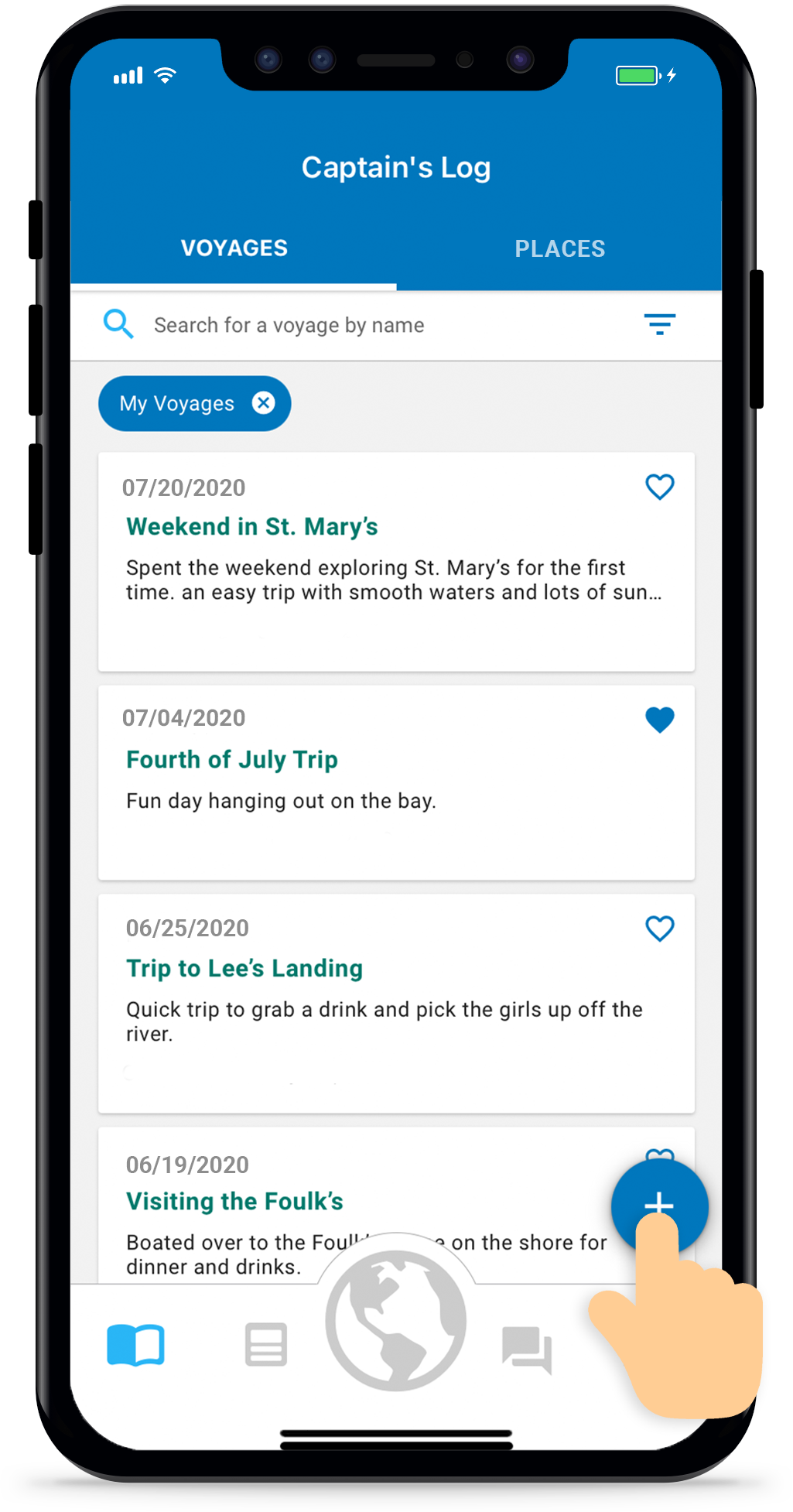
It is best to create a route from the main map as described above. Then start a trip and save it to My Trips. However, you can also add a trip you have already taken to My Trips by tapping on the “+” icon found at the bottom right and follow the entry instructions. Press Save after you’ve added all of the trip details.
Create Trip Categories
Create trip categories to help group your routes, tracks and trips as you wish. First tap Categories found in My Trips top menu bar. Then from the Categories screen tap the “+” button to create as many categories as you want. Enter the category name. Press the “=” to move the category. Press the “X” to remove the category. When done hit the Save button in the top right.
Once you have created categories, the next step is to assign individual routes, tracks and trips to these categories. Select one from the List View, scroll down until you get to the Categories section and select the category or categories you would like to assign it to.
Once assigned you can use the Filter and Sort feature to view only those items assigned to categories.
PREMIUM FEATURE
Create Trip Report
With this premium feature you can create a summary of your trips and download them straight from the app!
Tap Create Report found in My Trips top menu bar. Set the period of time and filter the type voyages, tracks or routes you’d like in your report. Then preview the report and by tapping the Save Report button, download the report as a PDF, email to yourself or share with others.
PREMIUM FEATURE
Import/Export GPX Files
With our premium Import/Export feature, you can bring in tracks or routes in standard GPX file format or export them to sync with your chartplotter.
Import
Tap Import GPX found in My Trips top menu bar and select the file to be imported. There’s a 10MB file size limit for now, so larger collections will need to be imported in batches. We’re working on expanding that.
You can also go to your Files app (or any other app), tap Share, and select Argo. Your file will import directly! Watch Dave’s demo to see how easy it is to import your data. youtube.com/watch?lid=zmpjgdm8e2f1&v=7XvRsfSzfVs&feature=youtu.be
Export
Open a route or track to view the details, tap the in the upper right corner and select Export to GPX File. Then have it emailed to you or select from multiple options to export the file.
Multiple Delete / Multiple Boat Sync
Argo allows you to easily delete multiple items and also multiple routes where the boat details do not match the current boat profile.
Multiple Delete
Tap Multiple Delete found in My Trips top menu bar and select routes, tracks or trips to be deleted. Tap on the icon in the upper right corner to bring up the Map View and see the selected item to be deleted. Tap Delete Items if you approve.
Multiple Boat Sync
Tap Boat Sync found in My Trips top menu bar to update all routes where the boat details do not match the current boat profile. If you do not see this option slide the menu bar to the left. Tap on the icon in the upper right corner to bring up the Map View and see the selected item to be synced. Tap Sync Boat Details if you approve.
Share a Trip
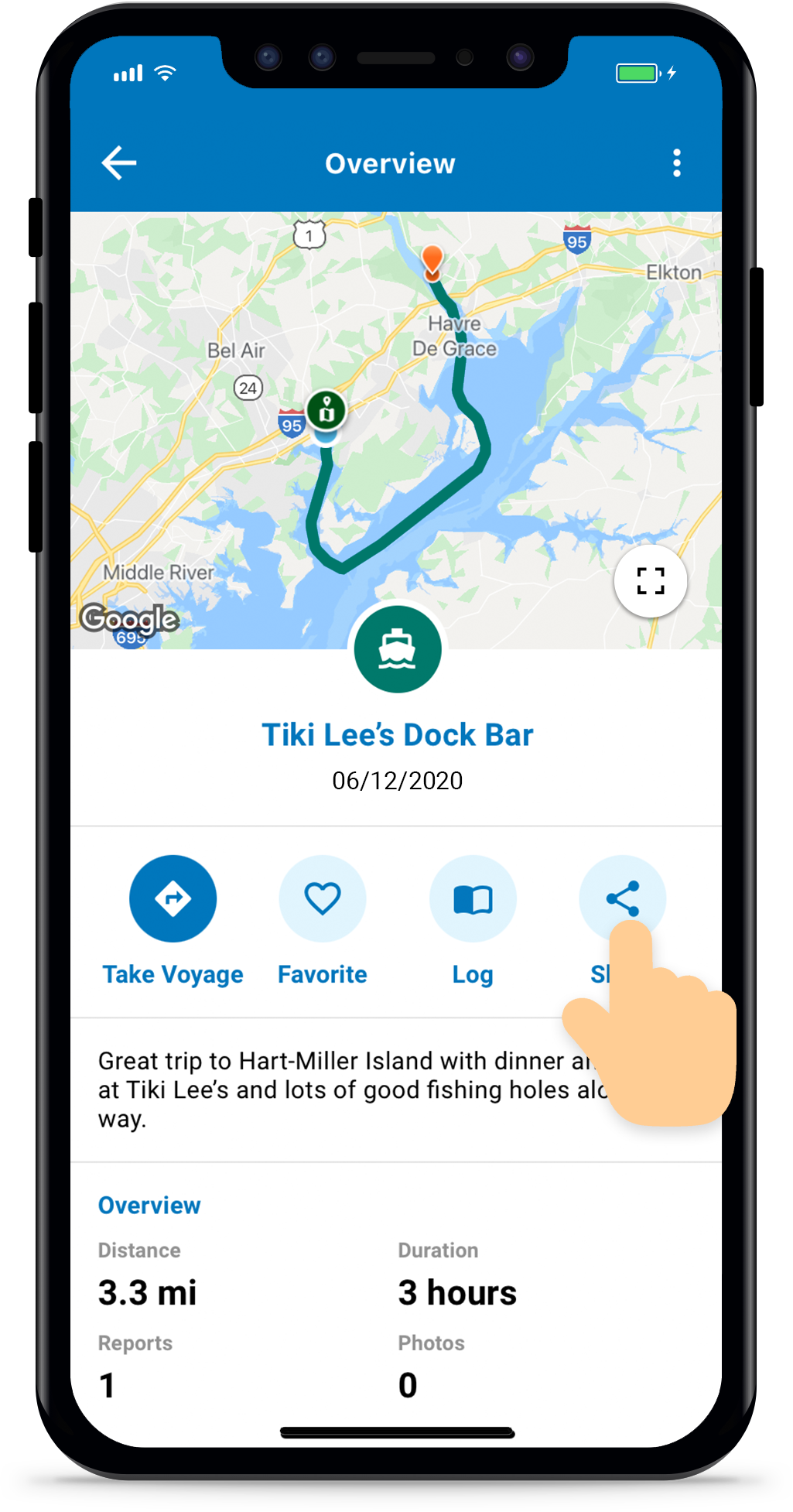
Tap on a route, track or trip you want to share from My Trips to open up the details screen. From here press the Share Icon  and choose from several options:
- Send as a Message – this goes to another Argo user.
- Create Post – this gets posted to the Social feed and all your Argo friends can see. They can view it and save it to their own My Trips.
- More Options – send as text or email outside the app with a web link to your trip.
Note: With Options 1 and 2 the recipient can not only view your trip, they can save it to their own My Trips.